VisionCraft Review 설명서
영상 편집본을 받은 고객이 수정할 장면마다 노트를 남겨 편집자에게 보내는 무료 웹 도구입니다. 「2분 12초쯤 자막 키워 주세요」를 글로 길게 쓰는 대신, 영상을 보다가 Enter를 누르면 그 순간의 타임코드가 붙은 노트가 남습니다. 카카오톡 · 메일로 주고받던 영상 피드백과 수정 요청을 정확한 시각과 화면 위치까지 담아 한 번에 정리할 수 있습니다.
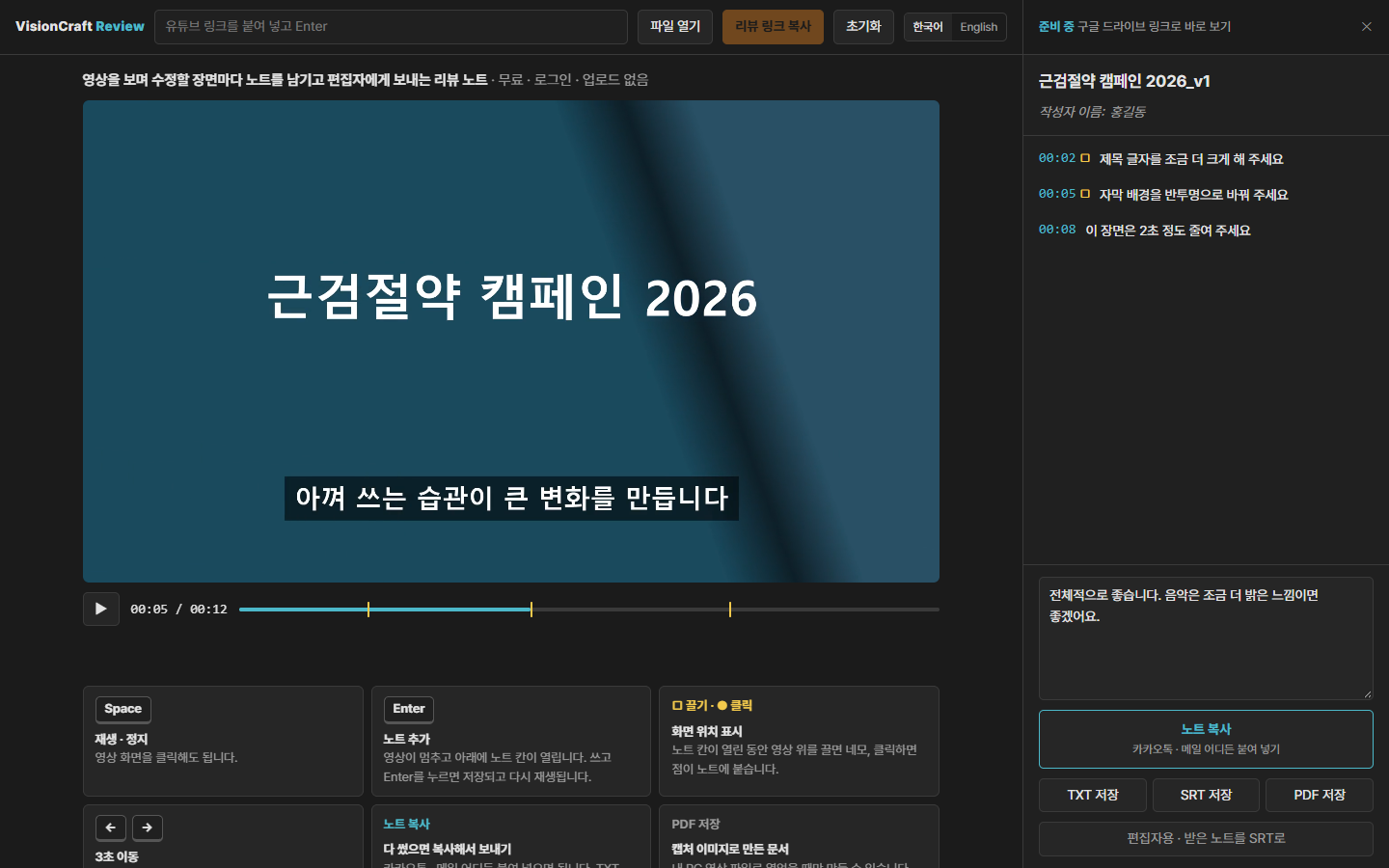
#01 고객 — 이렇게 씁니다
- 편집자에게 받은 리뷰 링크를 엽니다. 받은 영상 링크를 직접 붙여 넣거나, 받은 영상 파일을 화면에 끌어 놓아도 됩니다.
- Space로 재생하다가 고칠 곳에서 Enter를 누릅니다. 영상이 멈추고 노트 칸이 열립니다.
- 노트를 쓰고 Enter를 누르면 저장되고 다시 재생됩니다.
- 다 봤으면 노트 복사를 눌러 카카오톡 · 메일에 붙여 넣습니다.
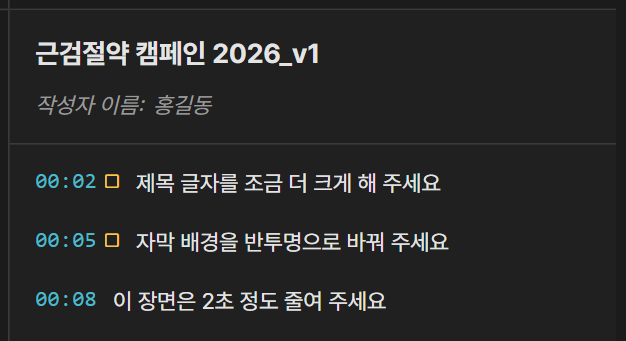
| 키 · 동작 | 하는 일 |
|---|---|
Space | 재생 · 정지(영상 화면을 클릭해도 됨) |
Enter | 노트 추가 — 그 시각에 노트가 붙음 |
| 영상 위를 끌기 · 클릭 | 노트 칸이 열린 동안 끌면 네모, 클릭하면 점 — 화면 위치가 노트에 붙음 |
← → | 3초 뒤 · 앞으로 |
| 오른쪽 목록의 시각 | 그 장면으로 이동(네모를 그렸으면 잠깐 다시 보임) |
#02 화면 위치 표시
「이 로고」 「뒤에 사람 얼굴」처럼 화면 어디인지가 중요할 때 씁니다. Enter로 노트 칸을 연 뒤 영상 위를 끌면 노란 네모가 그려집니다.
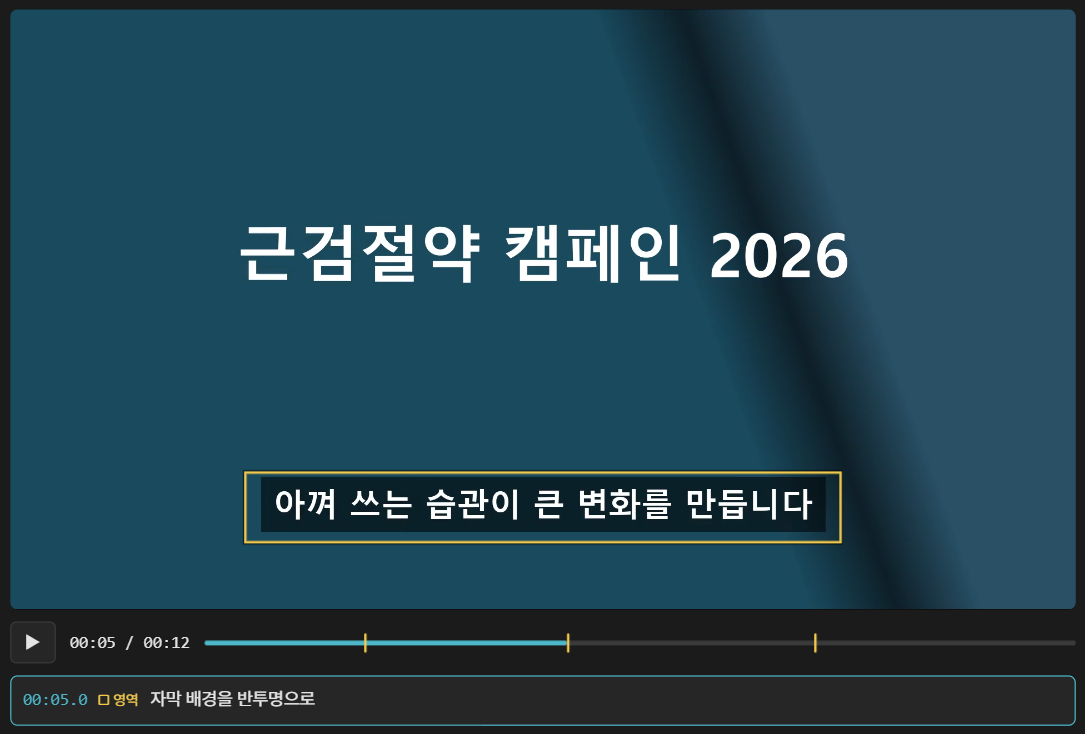
노트에는 이렇게 붙습니다.
01:04 [영역: 오른쪽 위 · 가로 70~85% · 세로 10~40%] 뒤에 일반인 얼굴 모자이크
「오른쪽 위」 같은 말은 화면을 9칸으로 나눠 자동으로 붙고, 비율 숫자는 영상 크기와 상관없이 같은 자리를 가리킵니다.
#03 보내기 · 저장하기
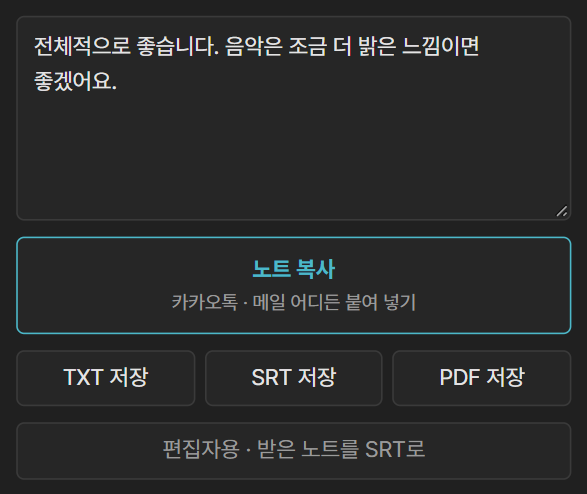
- 노트 복사: 카카오톡 · 메일 어디든 붙여 넣을 수 있는 글로 복사됩니다. 가장 간단한 방법입니다.
- TXT 저장: 같은 글을 파일로 저장합니다. 문서로 남겨야 할 때 씁니다.
- SRT 저장: 프리미어 프로에 캡션으로 불러올 수 있는 파일입니다.
- PDF 저장: 노트마다 그 순간의 캡처 이미지가 들어간 문서입니다. 내 PC 영상 파일로 열었을 때만 만들 수 있습니다(유튜브 화면은 브라우저가 캡처를 막습니다). 누르면 인쇄 창이 뜨고, 대상을 「PDF로 저장」으로 선택하면 됩니다.
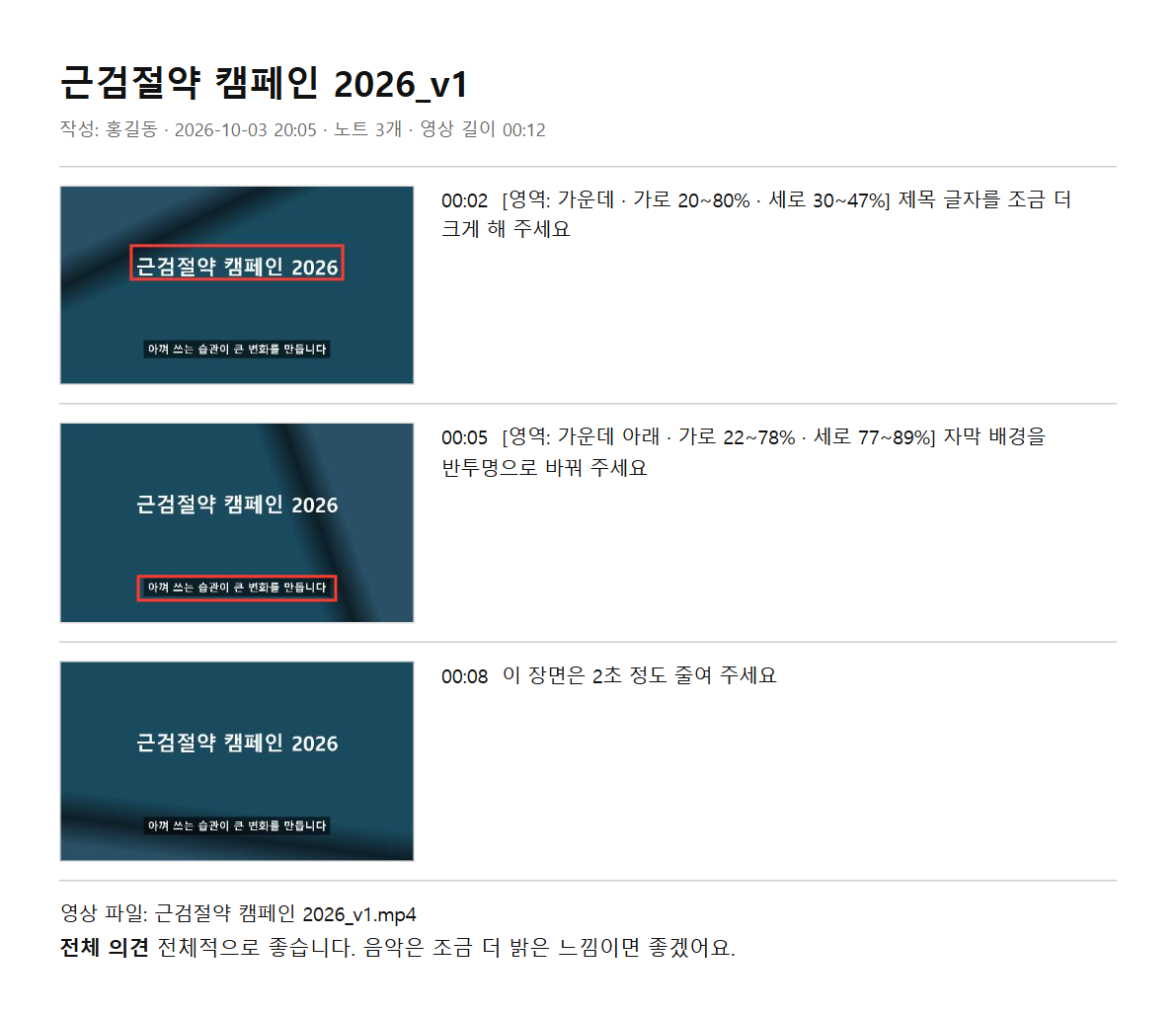
작성자 이름 칸에는 처음에 「홍길동」이 들어 있습니다. 그대로 두면 노트에 홍길동으로 나가니, 이름이나 회사 이름으로 바꿔 주세요.
#04 편집자 — 이렇게 받습니다
#작동 방식
리뷰 페이지는 영상을 보관하지 않고 재생만 합니다. 영상은 편집자가 평소 보내던 곳에 그대로 두고, 고객은 그 영상을 리뷰 페이지에서 열어 노트를 남깁니다. 그래서 영상을 보내는 방법은 지금 쓰는 방식 중에서 선택하면 됩니다.
| 지금 이렇게 보낸다면 | 고객에게 보낼 것 | 고객 쪽 |
|---|---|---|
| 영상 파일(카카오톡 · 메일 · 구글 드라이브 · 위트랜스퍼 등) | 영상 파일 + 리뷰 페이지 주소(visioncraftpd.com/review) | 받은 파일을 리뷰 페이지에 끌어 놓음 · 캡처가 든 PDF도 가능 |
| 유튜브 링크(일부 공개 · 쇼츠 포함) | 리뷰 링크 하나 — 유튜브 링크를 리뷰 페이지에 붙이고 주황색 리뷰 링크 복사 | 링크를 누르면 영상이 열린 채로 바로 시작 |
| 구글 드라이브 링크로 바로 보기 — 준비 중 | 리뷰 링크 하나 | 내려받기 없이 바로 재생(아래 05) |

#받은 노트 처리하기
- 고객이 노트 글을 카카오톡 · 메일로 보내 줍니다(PDF로 받았다면 PDF의 글을 전체 선택해 복사).
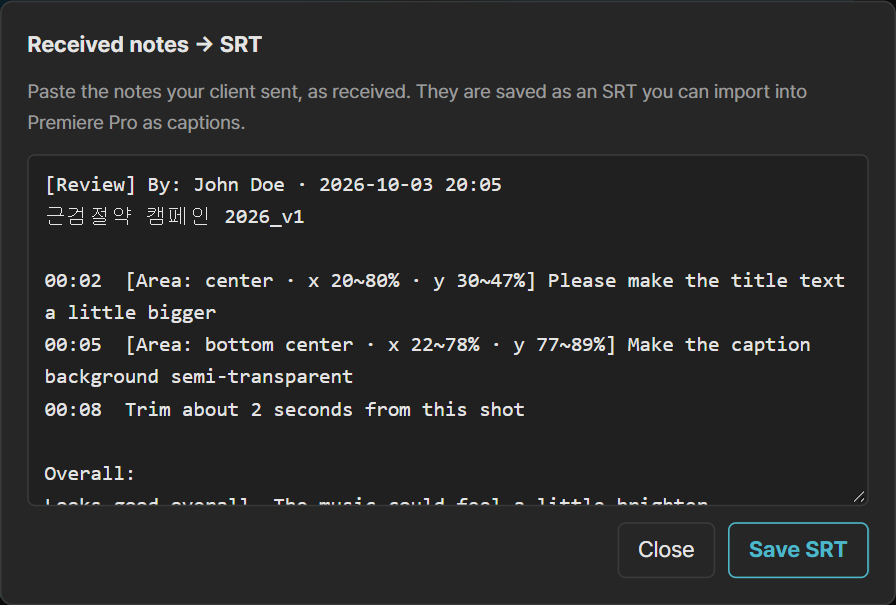
- 리뷰 페이지 맨 아래 편집자용 · 받은 노트를 SRT로에 붙여 넣으면 SRT 파일이 됩니다.
- SRT를 프리미어 프로로 가져와 캡션 트랙에 올리면, 고객의 피드백이 캡션 형식으로 보입니다.
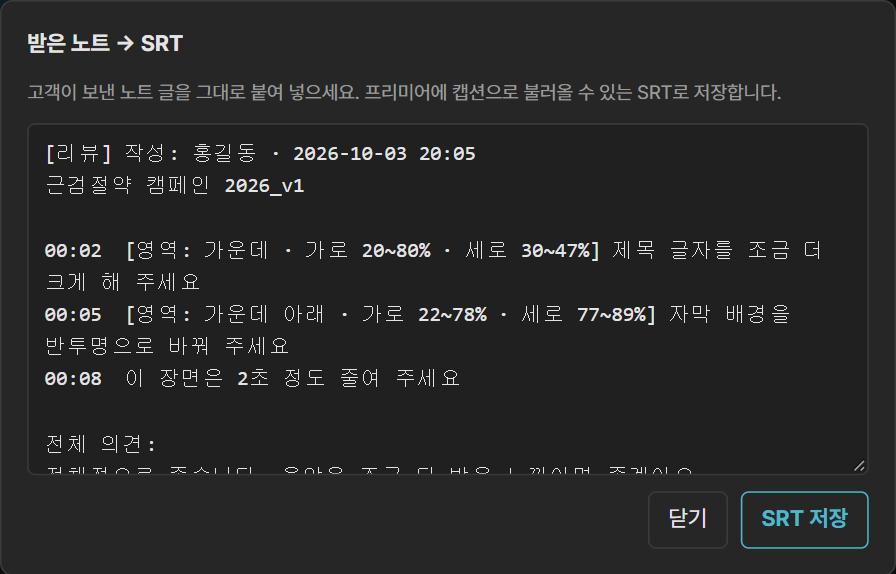
리뷰용 영상은 가볍게 내보내면 좋습니다. 1080p · H.264 정도면 충분하고, 고객 쪽 재생도 빨라집니다.
VisionCraft 플러그인을 사용하면 받은 노트를 마커로 넣거나, 노트를 눌러 그 편집 지점으로 바로 이동하는 기능을 쓸 수 있습니다(준비 중).
#05 구글 드라이브로 보기 — 준비 중
편집본을 유튜브에 올리지 않고 구글 드라이브 링크로 바로 리뷰하는 방법입니다.
- 편집자가 영상을 구글 드라이브에 올리고, 공유를 링크가 있는 모든 사용자 · 뷰어로 바꿉니다.
- 드라이브 공유 링크를 리뷰 페이지에 붙여 넣고 리뷰 링크 복사를 눌러 고객에게 보냅니다.
- 고객은 링크를 누르면 내려받기 없이 바로 재생하고, 유튜브 때와 똑같이 Enter로 노트를 남깁니다.
아직 준비 중입니다. 구글 드라이브 바로 보기는 지금 시험 중이며, 곧 열어 드리겠습니다. 그동안은 드라이브에서 영상을 내려받아 리뷰 화면에 끌어 놓으면 똑같이 쓸 수 있습니다.
#06 VC Hub와 함께 쓰기
VisionCraft VC Hub는 무료입니다. 리뷰 페이지는 혼자서도 다 되지만, 허브를 쓰면 리뷰 보내기 전과 받은 뒤의 일이 줄어듭니다.
#보내기 전 — 인코더로 리뷰용 영상 만들기
- 리뷰용 설정 한 번에: 가볍고 재생이 빠른 크기(1080p · H.264)로 만들어, 고객이 드라이브 · 유튜브 · 파일 어느 쪽으로 받아도 바로 열립니다.
- 타임코드 삽입(기본 켬): 화면 구석에 타임코드가 들어가 고객이 리뷰 페이지 밖(카카오톡 캡처 · 통화)에서도 정확한 시각을 말할 수 있습니다. 워터마크 역할도 합니다.
- 소리는 그대로: 음량을 바꾸지 않아 편집자가 믹스한 소리 그대로 전달됩니다.
#받은 뒤 — 노트를 프리미어로
- 노트 → 프리미어 마커: 받은 노트를 허브에 붙여 넣으면 열려 있는 시퀀스의 그 시각마다 마커가 찍히고, 화면 위치를 표시한 노트는 그 정보도 함께 들어갑니다(VisionCraft 플러그인 필요).
- 누르면 그 자리로: 허브 목록에서 노트를 누르면 프리미어가 그 편집 지점으로 바로 이동합니다.
- 할 일 목록: 고친 노트를 완료로 체크하면 접히고, 남은 수정이 몇 개인지 보입니다.
- 여러 사람 노트 합치기: 담당자 · 팀장 · 대표처럼 여러 사람이 보낸 노트를 한 목록으로 모으고, 같은 장면에 의견이 갈리면 따로 표시합니다.
인코더 리뷰용 설정과 노트 연동은 지금 개발 중입니다. 허브 받기와 지금 쓸 수 있는 기능은 VC Hub 설명서에서 볼 수 있습니다.
#07 자주 묻는 질문
#영상이 서버에 올라가나요?
아니요. 내 PC 영상 파일은 브라우저 안에서만 재생되고 어디에도 올라가지 않습니다. 유튜브 링크는 유튜브에서 그대로 재생됩니다.
#로그인이나 설치가 필요한가요?
필요 없습니다. 무료이고 링크만 열면 됩니다.
#노트는 어디에 저장되나요?
쓰는 동안 그 브라우저에 자동 저장되어, 창을 닫았다 열어도 남습니다. 다른 사람에게는 보이지 않으니 다 쓰면 복사하거나 파일로 저장해 보내 주세요.
#어떤 영상을 열 수 있나요?
유튜브(공개 · 일부 공개, 쇼츠 포함)와 브라우저가 재생할 수 있는 영상 파일(H.264 MP4 권장)입니다. 구글 드라이브 링크로 바로 보기는 준비 중입니다.
#유튜브 영상이 열리지 않아요
편집자에게 그 영상의 「퍼가기 허용」이 켜져 있는지, 공개 범위가 「일부 공개」인지 확인해 달라고 해 주세요.
VisionCraft Review Guide
A free web tool for clients to leave notes on a video edit and send them to the editor. Instead of writing “around 2:12, please make the caption bigger”, just press Enter while watching and a note is pinned to that exact moment. Video feedback and change requests that used to go back and forth by chat or email arrive in one tidy list, with timecodes and on-screen positions.
#01 For clients
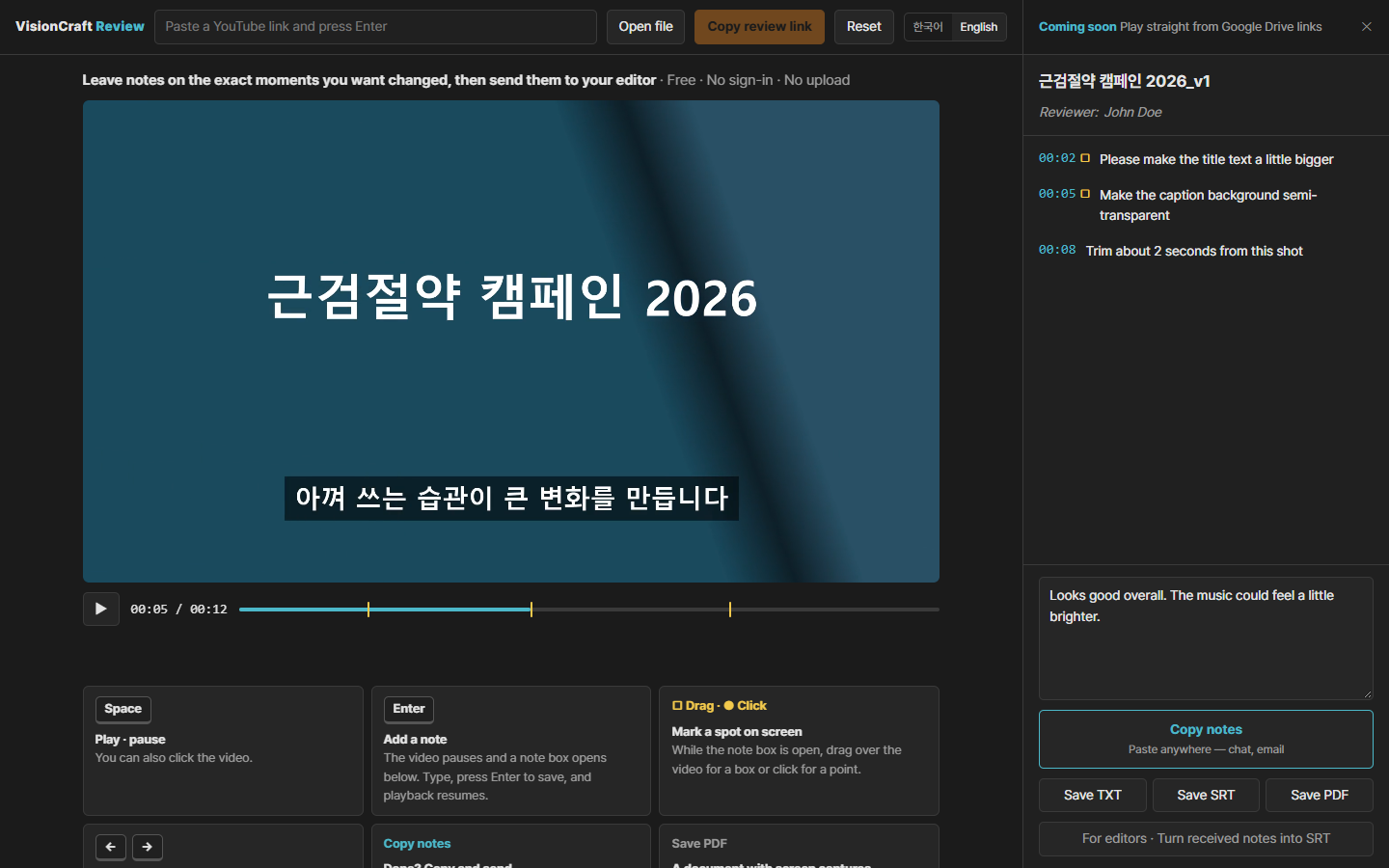
- Open the review link from your editor. You can also paste the video link you received, or drop the video file you received onto the page.
- Press Space to play, and Enter wherever something should change. The video pauses and a note box opens.
- Type your note and press Enter. It’s saved and playback resumes.
- When you’re done, click Copy notes and paste them into a chat app or email.
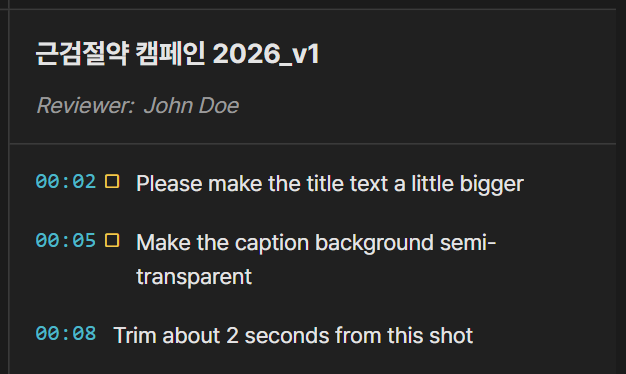
| Key · action | What it does |
|---|---|
Space | Play · pause (you can also click the video) |
Enter | Add a note at the current moment |
| Drag · click on the video | While the note box is open: drag for a box, click for a point — the spot is added to the note |
← → | Back · forward 3 seconds |
| A time in the list | Jumps to that moment (and briefly shows the box, if you drew one) |
#02 Marking a spot on screen
Use this when *where* matters — “this logo”, “the face in the background”. Press Enter to open the note box, then drag over the video to draw a yellow box.
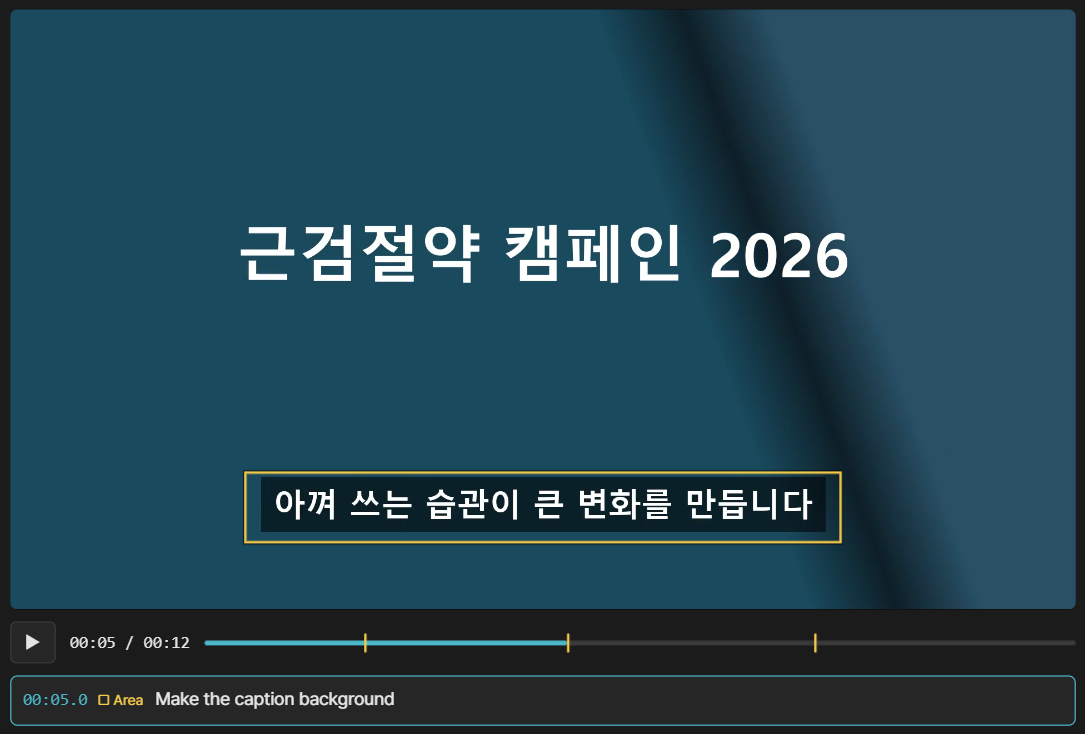
The note then reads like this:
01:04 [Area: top right · x 70~85% · y 10~40%] Blur the face in the background
Words like “top right” are added automatically from a 3×3 grid, and the percentages point to the same spot whatever the video size.
#03 Sending and saving
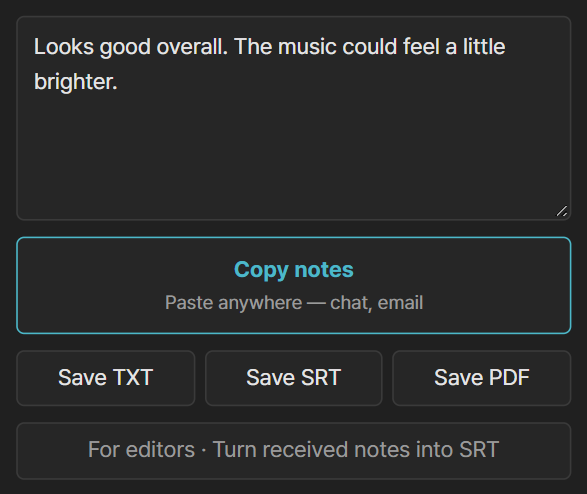
- Copy notes: copies your notes as text you can paste anywhere — chat apps, email. The simplest way.
- Save TXT: saves the same text as a file, for when you need a record.
- Save SRT: a file your editor can import into Premiere Pro as captions.
- Save PDF: a document with a screen capture for every note. Available only when you open a video file from your computer (browsers block captures of YouTube). A print window opens — choose “Save as PDF” as the destination.
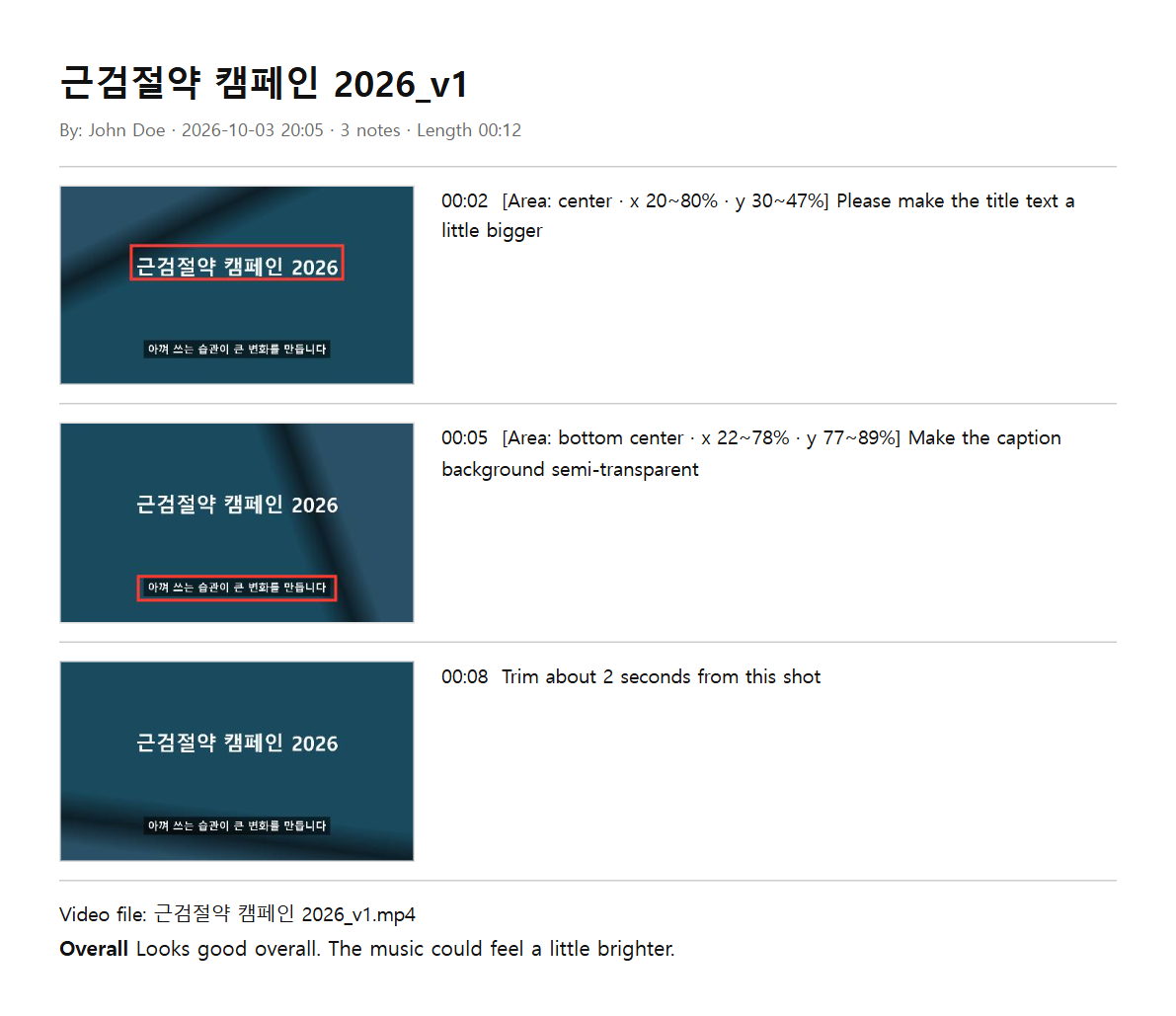
The reviewer field starts as “John Doe”. If you leave it, your notes go out as John Doe — change it to your name or company.
#04 For editors
#How it works
The review page only plays the video — it never stores it. Your video stays wherever you normally send it, and your client opens it on the review page to leave notes. So just pick whichever way you already deliver cuts.
| If you usually send… | Send your client | On the client’s side |
|---|---|---|
| A video file (chat app, email, Google Drive, WeTransfer…) | The file + the review page address (visioncraftpd.com/review) | Drop the file onto the review page · PDF with captures available |
| A YouTube link (unlisted, Shorts included) | One review link — paste the YouTube link into the review page and click the orange Copy review link | One click opens the review page with the video loaded |
| A Google Drive link, played directly — coming soon | One review link | Plays right away, no download (see 05) |

#Handling the notes you receive
- Your client sends the notes by chat or email (if you got a PDF, select all of its text and copy it).
- Paste them into For editors · Turn received notes into SRT at the bottom of the review page to get an SRT file.
- Import the SRT into Premiere Pro and place it on a caption track — your client’s feedback shows up as captions.
Export review copies light. 1080p H.264 is plenty, and it plays faster for your client.
With the VisionCraft plugins, you can bring notes in as markers and jump straight to each edit point from a note (coming soon).
#05 Watching from Google Drive — coming soon
A way to review straight from a Google Drive link, without uploading to YouTube.
- The editor uploads the video to Google Drive and sets sharing to Anyone with the link · Viewer.
- Paste the Drive link into the review page and click Copy review link to send it.
- The client opens the link and plays it right away, no download — notes work just like with YouTube.
Coming soon. Playing straight from Google Drive is being tested now and will open shortly. Until then, download the video from Drive and drop it onto the review page — everything works the same.
#06 Using it with VC Hub
VisionCraft VC Hub is free. The review page works fully on its own, but the Hub cuts down the work before you send and after you hear back.
#Before you send — review copies from the encoder
- One-click review preset: a light, fast-playing file (1080p H.264) that opens right away whether your client gets it via Drive, YouTube, or as a file.
- Burned-in timecode (on by default): a timecode in the corner lets your client quote exact times even outside the review page — in a chat screenshot or on a call. It doubles as a watermark.
- Sound untouched: no loudness changes, so your mix arrives exactly as you made it.
#After you hear back — notes into Premiere
- Notes → Premiere markers: paste the notes into the Hub and markers land at each timecode in the open sequence, with any on-screen area included (requires a VisionCraft plugin).
- Click to jump: click a note in the Hub and Premiere jumps straight to that edit point.
- To-do list: tick notes off as you fix them — finished ones fold away and you can see how many changes are left.
- Merge reviewers: notes from several people — producer, team lead, client — come together in one list, and conflicting comments on the same moment are flagged.
The encoder review preset and note integration are in development. Get the Hub and see what it can do today in the VC Hub guide.
#07 FAQ
#Is my video uploaded anywhere?
No. Video files from your computer play only inside your browser and are never uploaded. YouTube links play from YouTube.
#Do I need to sign in or install anything?
No. It’s free and works as soon as you open the link.
#Where are my notes kept?
They’re saved automatically in your browser while you work, so closing the tab won’t lose them. Nobody else can see them, so copy or save them to send.
#Which videos can I open?
YouTube (public or unlisted, Shorts included) and video files your browser can play (H.264 MP4 recommended). Playing from Google Drive links is coming soon.
#The YouTube video won’t open
Ask your editor to check that “Allow embedding” is on for the video and that it’s set to Unlisted.