VC Font 매뉴얼
프리미어 안에서 글꼴을 빠르게 찾고, 쓴 글로 바로 미리보기 하는 패널입니다. 마음에 드는 글꼴은 그룹으로 묶어 두고 골라 씁니다. 무료이고(무료 시리얼 키가 필요합니다), VC Hub 없이 혼자 동작합니다. · 업데이트 노트
#설치 · 열기
- VC Hub › 내 제품에서 VC Font를 설치하거나, 홈페이지에서 바로 받아 .ccx 파일을 더블클릭합니다.
- 프리미어를 다시 켜고 Window › Extensions › VC Font를 엽니다. 원하는 자리에 끌어다 붙여 두세요.
- 처음 켜면 10일 사용 기간이 저절로 시작됩니다(위 줄 오른쪽에 주황색 「체험」 배지). 계속 쓰려면 무료 시리얼 키를 이메일로 받아 설정의 시리얼 키 칸에 넣으세요(VF-로 시작). 사용 기간이 끝나면 목록이 흐려지고, 시리얼을 넣으면 바로 풀립니다.
#글꼴 찾기 · 미리보기
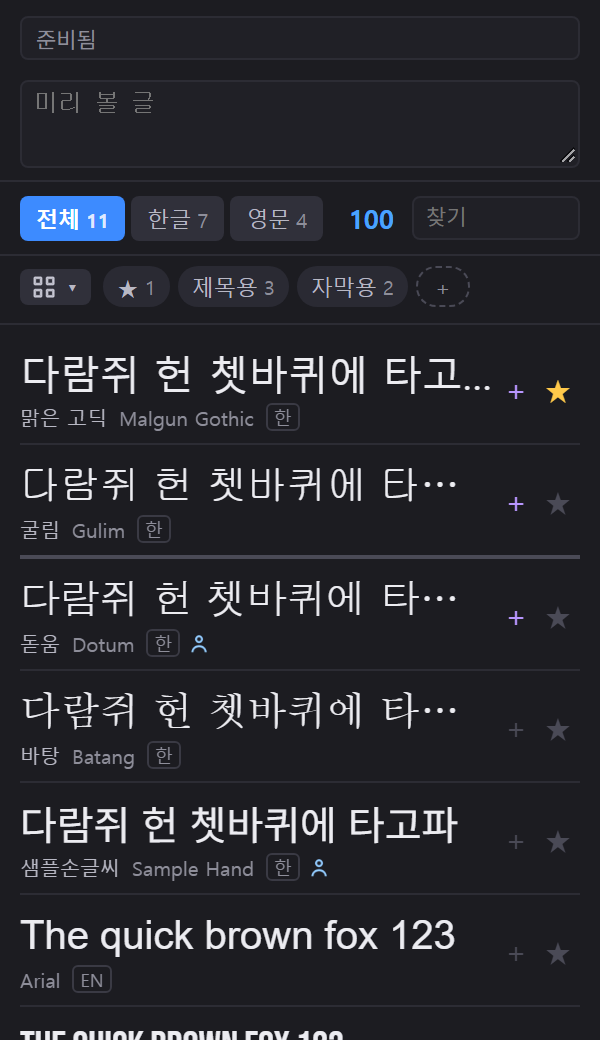
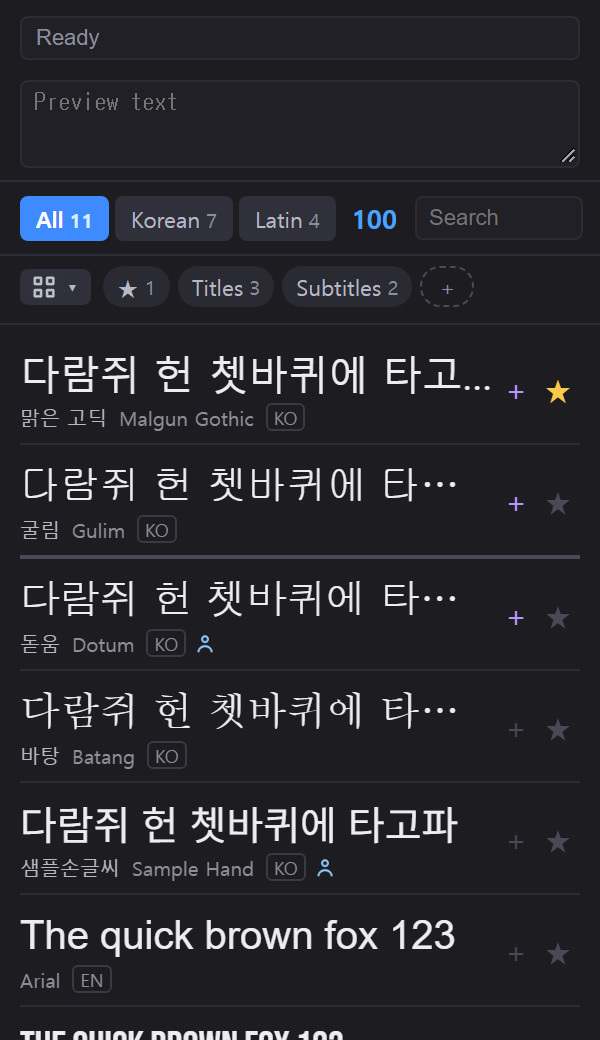
- 미리 볼 글 — 위 칸에 쓴 글로 모든 글꼴을 미리 봅니다. 비워 두면 한글 글꼴은 「다람쥐 헌 쳇바퀴에 타고파」, 영문 글꼴은 「The quick brown fox 123」으로 보입니다.
- 전체 · 한글 · 영문 — 한글을 쓸 수 있는 글꼴과 영문 글꼴을 나눠 봅니다. 옆 숫자는 글꼴 개수입니다.
- 찾기 — 한글 이름 · 영문 이름 어느 쪽으로도 찾습니다. 띄어쓰기는 무시합니다(예: 「맑은고딕」 · 「malgun」).
- 크기 — 파란 숫자를 좌우로 끌거나 눌러서 입력합니다. 프로퍼티(Properties)의 글자 크기와 같은 숫자라 서로 비교하기 좋습니다(기본 100, 마우스 오른쪽 클릭 = 100).
#이름 복사 → 프리미어에서 고르기
글꼴 줄 아래의 이름을 누르면 그 이름이 복사됩니다. 프로퍼티(Properties) 패널의 글꼴 칸에 붙여 넣으면 바로 그 글꼴이 나옵니다. 한국어 윈도에서는 프리미어가 글꼴의 한국어 이름을 보여 주기 때문에, 한국어 이름이 있는 글꼴은 한국어 이름을 복사합니다.
#★ 즐겨찾기와 그룹
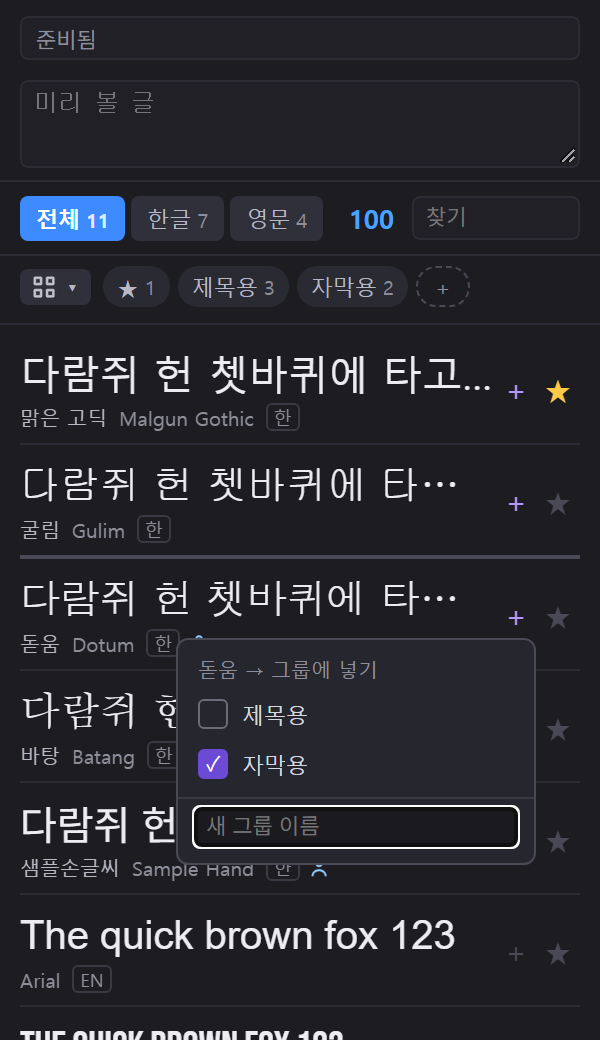
- ★ — 누르면 즐겨찾기에 넣고 다시 누르면 뺍니다. 즐겨찾기 글꼴은 늘 목록 맨 위에 옵니다.
- 그룹 줄 — 목록 위의 칩(★ · 내 그룹들)을 누르면 그 그룹의 글꼴만 보입니다. 한 번 더 누르면 풀립니다. 한글 · 영문 · 찾기와 겹쳐서 걸러집니다(예: 「자막용」 + 한글 + 「고딕」).
- 새 그룹 — 그룹 줄 끝의 +를 눌러 이름을 쓰고 Enter를 누릅니다. 그룹 이름은 마음대로 지을 수 있습니다.
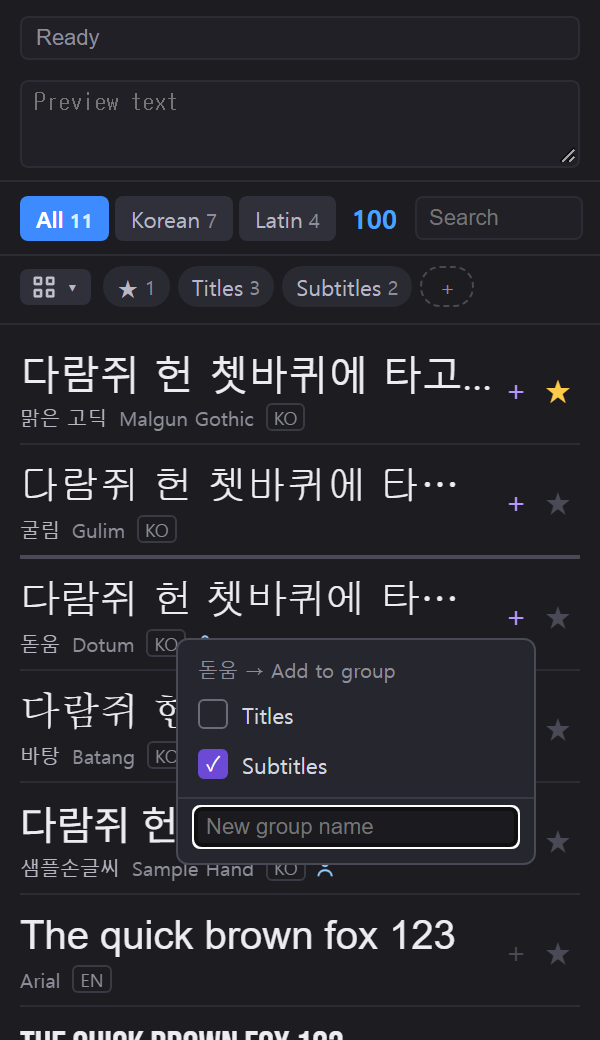
- 그룹에 넣기 — 글꼴 줄 오른쪽의 +를 누르면 그룹 목록이 뜹니다. 체크하면 넣고, 다시 누르면 뺍니다. 맨 아래 칸에 이름을 쓰고 Enter를 누르면 새 그룹을 만들면서 바로 넣습니다. 글꼴 하나를 여러 그룹에 넣을 수 있고, 그룹에 든 글꼴은 +가 보라색이 됩니다.
#설치 위치로 보기
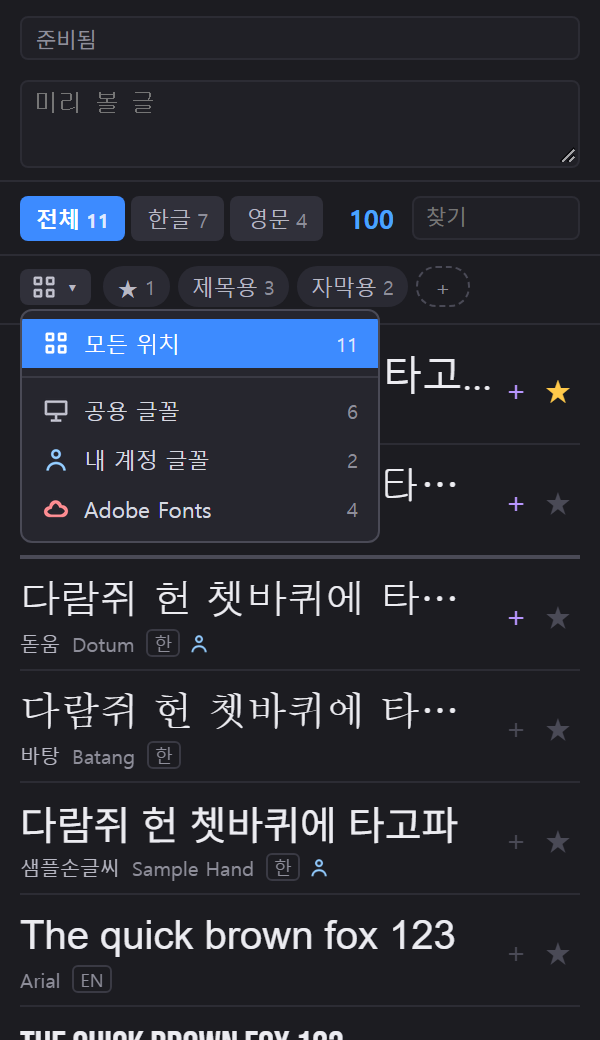
그룹 줄 맨 앞의 위치 단추를 누르면 글꼴이 설치된 곳으로 나눠 볼 수 있습니다.
- 공용 글꼴 — 컴퓨터의 모든 사용자가 쓰는 글꼴(운영체제 기본 글꼴 포함)
- 내 계정 글꼴 — 내 계정에만 설치한 글꼴. 글꼴 이름 옆에 사람 모양이 붙습니다.
- Adobe Fonts — Creative Cloud에서 켠 글꼴. 글꼴 이름 옆에 구름 모양이 붙습니다.
위치를 고르면 단추가 파랗게 바뀌고, 맨 위 줄에 지금 보고 있는 위치와 개수가 나옵니다. Adobe Fonts 글꼴 중 패널이 그릴 수 없는 것은 「미리보기 없음 — 프리미어에서 확인」으로 보입니다. 이름 복사 · ★ · 그룹은 그대로 됩니다.
#설정
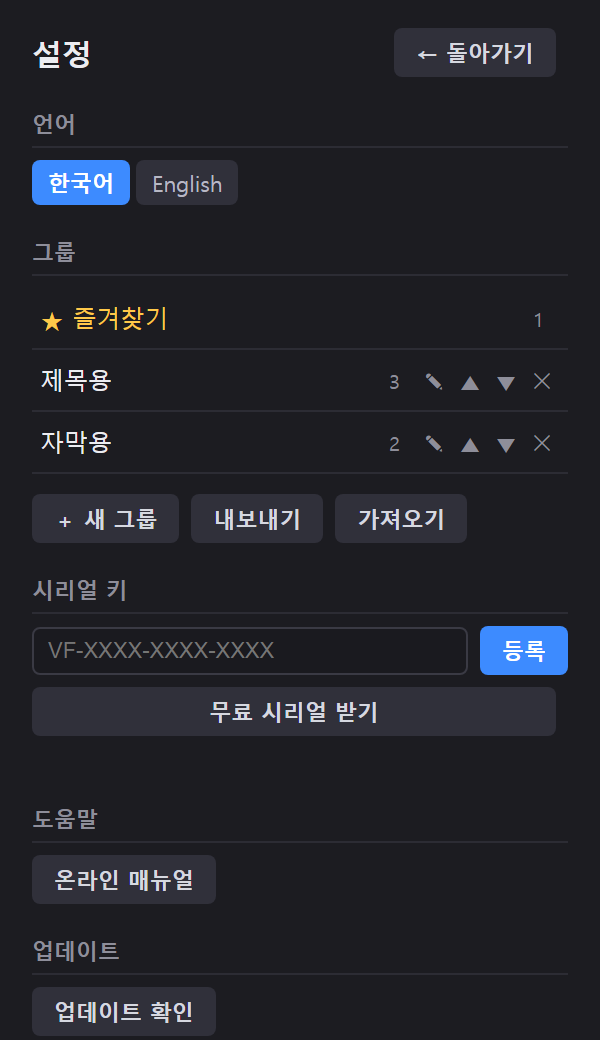
패널 이름 옆 ≡ 메뉴에서 설정…과 화면 크기 › S · M · L을 고릅니다.
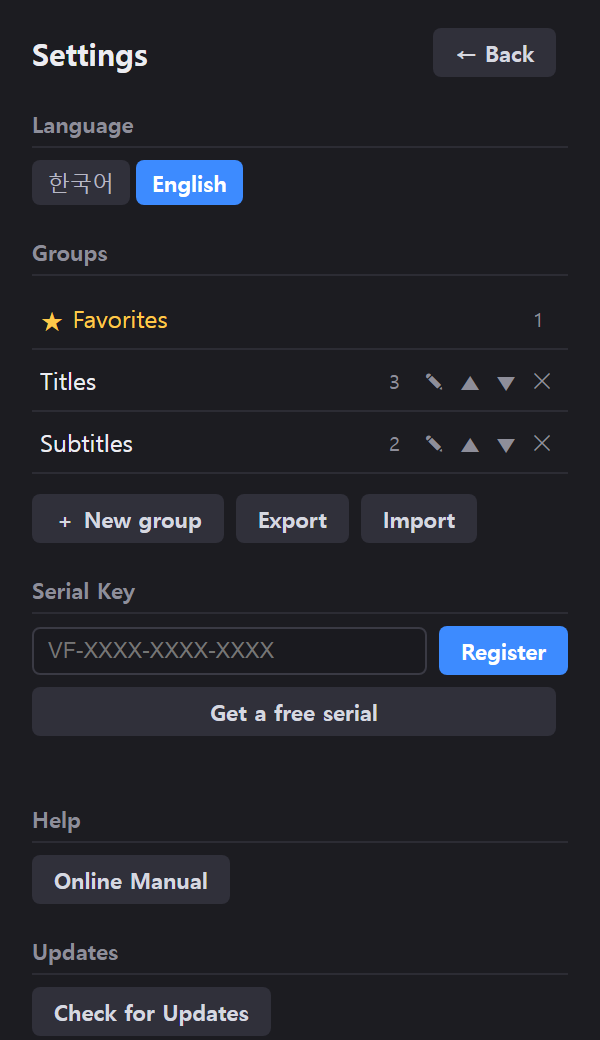
- 언어 — 한국어 · English
- 그룹 — 그룹 이름 바꾸기(✎) · 순서(▲▼) · 지우기(✕, 실수하지 않게 한 번 더 누름). + 새 그룹과 내보내기 · 가져오기도 여기 있습니다. 내보내기는 ★ 즐겨찾기를 포함한 그룹 전체를 파일 하나로 저장하고, 가져오기는 같은 이름의 그룹을 합칩니다(지금 있는 그룹은 지우지 않습니다). 다른 PC로 옮길 때 쓰세요.
- 시리얼 키 — 등록 · 이 PC에서 해제 · 무료 시리얼 받기
- 온라인 매뉴얼 · 업데이트 확인 · 정보(버전 · 사용 상태 · PC 코드)
새 버전이 나오면 패널 위에 알림이 뜹니다. 누르면 VC Hub에서 업데이트할 수 있습니다.
#자주 묻는 질문
Q. VC Hub가 꼭 있어야 하나요? 아니요. VC Font는 허브나 다른 VC 제품 없이 혼자 동작합니다. 허브가 있으면 설치 · 업데이트 · 시리얼 관리가 편해집니다.
Q. 패널에서 글꼴을 바꿔 주나요? 아니요. VC Font는 찾고 미리 보는 패널입니다. 이름을 복사해 프로퍼티(Properties)의 글꼴 칸에 붙여 넣어 고르세요.
Q. 미리보기 크기가 영상 속 글자 크기와 같나요? 같지는 않습니다. 크기 숫자는 프로퍼티와 같은 비율이라 글꼴끼리 비교하는 데 쓰세요.
Q. 새로 설치한 글꼴이 안 보여요. 프리미어를 다시 켜면 새 글꼴을 읽습니다(프리미어도 새 글꼴은 다시 켜야 보입니다). 처음 한 번은 조금 걸리고, 그 뒤로는 바뀐 글꼴만 다시 읽어 빠릅니다.
Q. 컴퓨터를 바꾸면 그룹은 어떻게 하나요? 설정 › 그룹 › 내보내기로 파일을 만들고, 새 PC에서 가져오기를 누르세요. 새 PC에 없는 글꼴은 목록에 안 보이지만 기록은 남아 있어서, 나중에 그 글꼴을 설치하면 그룹에 다시 나타납니다.
VC Font Manual
A panel for finding fonts fast inside Premiere and previewing them with your own text. Keep the fonts you like in groups and pick from them. It's free (a free serial key is required) and works on its own, without VC Hub. · Updates
#Install · open
- Install VC Font from VC Hub › My Products, or download it from the website and double-click the .ccx file.
- Restart Premiere and open Window › Extensions › VC Font. Dock it wherever you like.
- The first time you open it, a 10-day trial starts on its own (an orange "Trial" badge at the top right). To keep using it, get a free serial key by email and enter it under Serial Key in Settings (it starts with VF-). When the trial ends the list is dimmed; entering a serial unlocks it right away.
#Find and preview fonts
- Preview text — every font is previewed with what you type in the top box. Left empty, Korean fonts show a Korean sample and Latin fonts show "The quick brown fox 123".
- All · Korean · Latin — fonts that can write Korean, and Latin-only fonts. The numbers are font counts.
- Search — works with both Korean and English names, ignoring spaces (e.g. "malgun").
- Size — drag the blue number left or right, or click it to type. It uses the same numbers as the font size in Properties, so it's easy to compare (default 100, right-click = 100).
#Copy the name → pick it in Premiere
Click the name under a font to copy it. Paste it into the font field of the Properties panel and that font comes up. On Korean Windows, Premiere shows a font's Korean name, so fonts that have one copy the Korean name.
#★ Favorites and groups
- ★ — click to add to Favorites, click again to remove. Favorite fonts always stay at the top of the list.
- Group row — click a chip above the list (★ or one of your groups) to show only that group. Click again to clear. It combines with Korean · Latin and search (e.g. "Subtitles" + Korean + "gothic").
- New group — click + at the end of the group row, type a name and press Enter. Name your groups however you like.
- Add to a group — click + on the right of a font row to see your groups. Check to add, click again to remove. Type a name in the bottom box and press Enter to create a new group and add the font in one go. One font can be in several groups; fonts in a group show a purple +.
#Browse by location
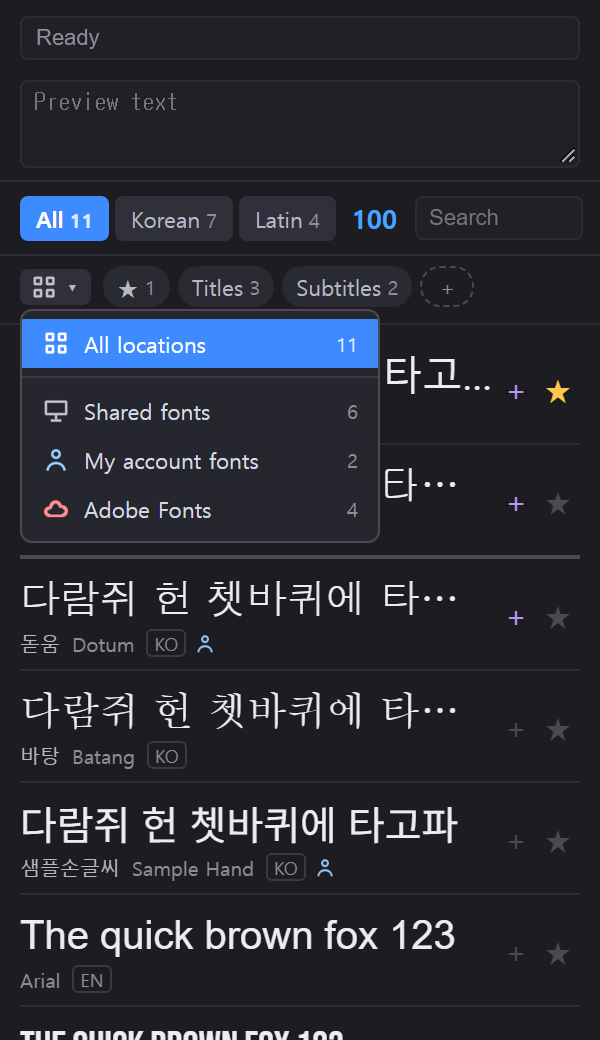
Click the location button at the start of the group row to see fonts by where they're installed.
- Shared fonts — fonts for every user on the computer (including the system fonts)
- My account fonts — fonts installed for your account only, marked with a person icon next to the name
- Adobe Fonts — fonts activated in Creative Cloud, marked with a cloud icon
The button turns blue while a location is picked, and the top line shows the location and count. Adobe Fonts that the panel can't draw show "No preview — check in Premiere"; copying the name, ★ and groups still work.
#Settings
From the ≡ menu next to the panel name, choose Settings… or Text Size › S · M · L.
- Language — 한국어 · English
- Groups — rename (✎) · reorder (▲▼) · delete (✕, click once more to confirm). + New group and Export · Import are here too. Export saves all groups, Favorites included, into one file; Import merges groups with the same name and never deletes your current groups. Use it to move to another PC.
- Serial Key — register · remove from this PC · get a free serial
- Online Manual · Check for Updates · About (version · status · PC code)
When a new version is out, a notice appears at the top of the panel. Click it to update from VC Hub.
#FAQ
Q. Do I need VC Hub? No. VC Font works on its own, without the Hub or other VC products. With the Hub, installing, updating and managing serials is easier.
Q. Does the panel change the font for me? No. VC Font is for finding and previewing. Copy the name and paste it into the font field in Properties.
Q. Is the preview size the same as the text in my video? Not exactly. The size number uses the same scale as Properties, so use it to compare fonts.
Q. A font I just installed doesn't show up. Restart Premiere and the new font is read (Premiere also needs a restart for new fonts). The first scan takes a moment; after that only changed fonts are read again.
Q. How do I move my groups to a new computer? Settings › Groups › Export to make a file, then Import it on the new PC. Fonts that aren't on the new PC are hidden but remembered, so they show up in their groups again once you install them.