VC Marker 매뉴얼
러프 컷을 보면서 고칠 곳을 구간 마커로 남기고, VC Review로 받은 노트를 마커로 옮겨 주는 작은 패널입니다. 무료이고, VC Hub 없이 혼자 동작합니다. · 업데이트 노트
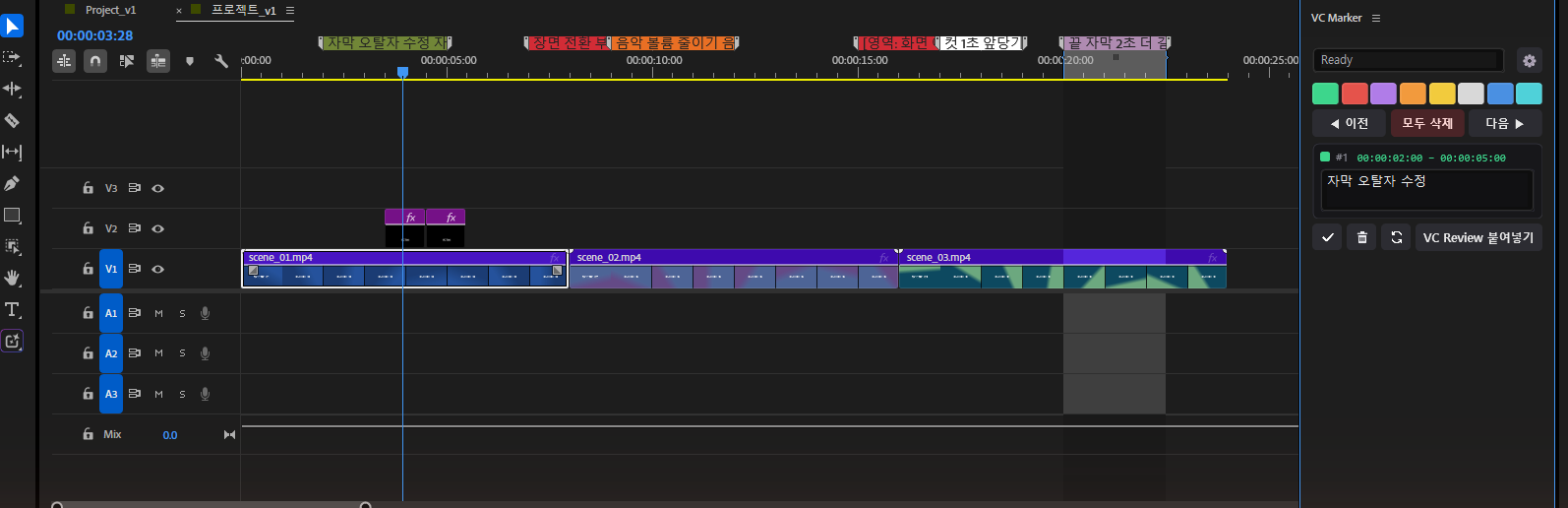
#설치 · 열기
- VC Hub › 내 제품에서 VC Marker를 설치합니다.
- 프리미어를 다시 켜고 Window › Extensions › VC Marker를 엽니다. 원하는 자리에 끌어다 붙여 두세요.
- 처음 켜면 10일 사용 기간이 저절로 시작됩니다. 이후에는 무료 시리얼 키를 이메일로 받아 ⚙ 설정의 시리얼 칸에 넣어 계속 씁니다(VN-로 시작). 파일은 홈페이지에서 바로 받을 수도 있습니다.
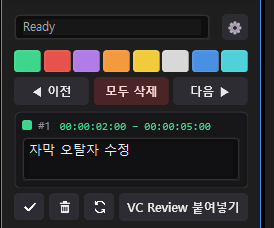
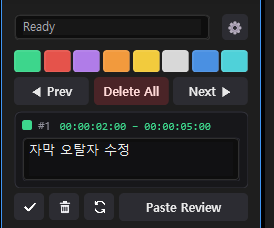
패널은 위에서부터 상태줄 · ⚙ → 색 버튼 8개 → 이전 · 모두 삭제 · 다음 → 편집 창 → ✓ · 휴지통 · 재정렬 · VC Review 붙여넣기 순서입니다. 상태줄에는 방금 한 일이 한 줄로 나옵니다. 글이 길면 칸을 눌러 End 키로 뒤쪽을 보거나, 끌어서 골라 Ctrl+C로 복사할 수 있습니다(마우스를 올리면 전체 문장이 뜹니다).
패널 이름 옆 ≡ 메뉴에서 Settings…(설정)와 Text Size › S · M · L(패널 전체 크기, M = 기본)을 고를 수 있습니다.
#마커 — 구간 메모
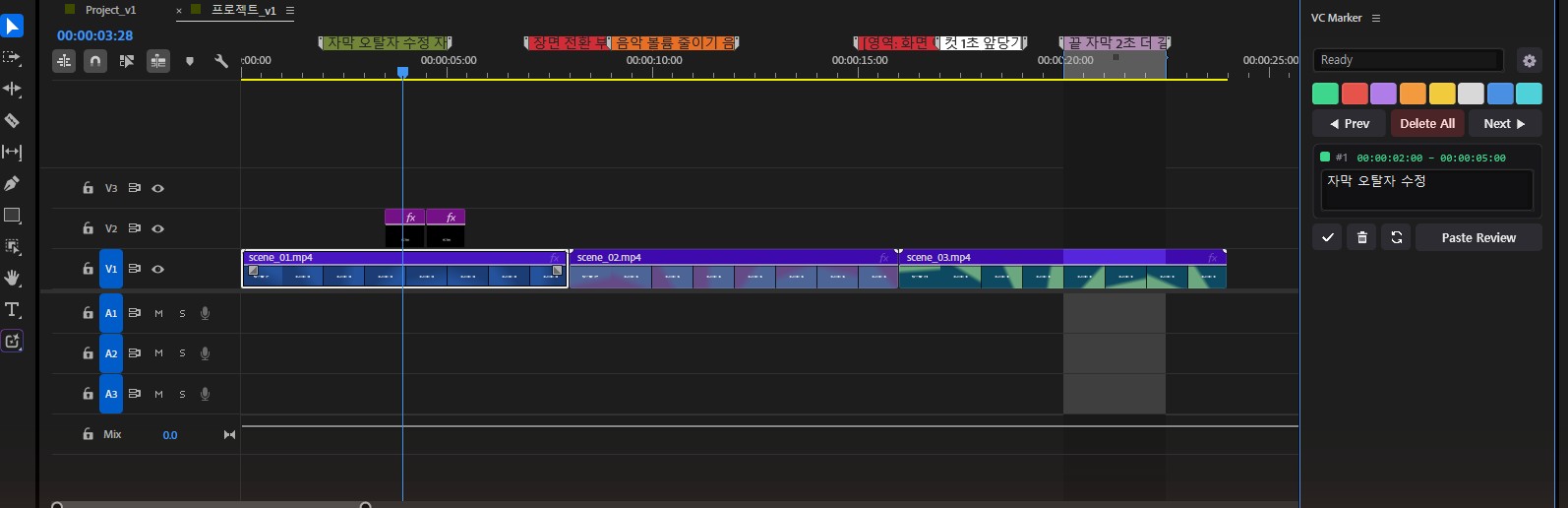
고칠 곳을 구간 마커로 남깁니다. 색 버튼을 누르면 메모 창이 뜨고, 글을 쓰고 Enter를 누르면 마커가 찍힙니다. 구간은 이 순서로 정해집니다.
- In · Out이 있으면 그 구간(찍은 뒤 In · Out은 지워집니다)
- 고른 클립이 있으면 그 클립의 처음~끝
- 둘 다 없으면 인디케이터에서 3초
색은 마음대로 나눠 쓰면 됩니다. 예를 들어 초록 = 자막, 주황 = 음악, 보라 = 그래픽.
◀ 이전 · 다음 ▶ 으로 VC Marker 마커 사이를 오가면, 아래 편집 창에 인디케이터가 있는 마커의 글이 나옵니다. 고치고 Enter 또는 ✓(적용) 를 누르면 마커에 바로 들어가고, 편집 창 머리의 × 를 누르면 되돌립니다. 휴지통은 그 마커 하나를 지웁니다.
마커 재정렬(✓ · 휴지통 옆 새로고침 모양) — 앞쪽을 잘라 내거나 클립을 옮겨 마커와 장면이 어긋났을 때 누르세요. 마커가 처음 가리키던 장면을 찾아 지금 자리로 옮깁니다(구간 길이는 그대로). 그 장면의 클립을 지웠으면 그 마커는 그대로 두고 상태줄에 알려 줍니다.
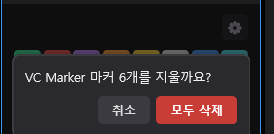
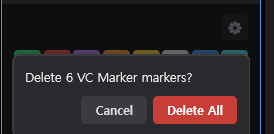
모두 삭제는 VC Marker로 찍은 마커만 지웁니다. 직접 찍은 마커나 다른 도구의 마커는 그대로 남습니다. 지우기 전에 몇 개인지 한 번 묻습니다.
#VC Review 노트 붙여넣기
VC Review로 받은 수정 요청을 한 번에 마커로 옮깁니다. VC Review는 고객이 영상을 보며 노트를 남기는 무료 웹 도구이고, VC Marker는 그 노트를 프리미어 타임라인으로 가져오는 짝입니다.
- VC Review에서 노트 복사를 눌러 받은 글을 복사합니다. 카톡이나 메일로 받은 글도 됩니다.
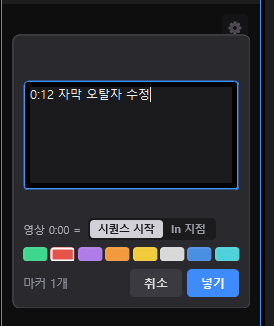
- 패널의 VC Review 붙여넣기를 누르고 글 칸에 붙여 넣습니다. 아래에 「마커 3개」처럼 읽힌 개수가 나옵니다.
- 영상 0:00 = 에서 노트의 0:00이 어디인지 고릅니다. 영상 처음부터 시퀀스에 넣었다면 시퀀스 시작, 시퀀스 중간 In 지점에 넣었다면 In 지점을 고릅니다.
- 마커 색을 고르고 넣기를 누릅니다.
- 「0:12 자막 오탈자 수정」처럼 시간 + 글 한 줄이 마커 하나가 됩니다. 시간은
m:ss·mm:ss·h:mm:ss모두 읽습니다. - 줄 앞의 「- 」 · 「1. 」 · 「[ ]」 같은 목록 표시는 알아서 건너뜁니다.
- 시간이 없는 줄(제목 · 전체 의견 · 「영상:」 줄)은 무시합니다.
- 점으로 남긴 노트는 3초짜리 마커가 됩니다. VC Review에서 저장한 SRT를 통째로 붙여 넣어도 읽으며, 이때는 구간 그대로 마커가 됩니다.
- 이미 같은 자리에 같은 글의 마커가 있으면 건너뜁니다. 같은 노트를 두 번 붙여도 중복되지 않습니다.
- 넣은 마커는 모두 일반 VC Marker 마커라서 이전 · 다음 · 편집 · 재정렬이 그대로 됩니다.
- 취소는 취소 버튼이나 Esc입니다.
#설정(⚙)
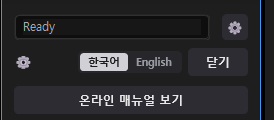
- 한국어 | English — 패널 글자(버튼 · 확인 창 · 설정) 언어
- 온라인 매뉴얼 보기 — 이 매뉴얼을 브라우저로 엽니다
- 정보 — 버전 · 사용 상태 · PC 코드
- 시리얼 키 — 등록 · 이 PC에서 해제(다른 PC로 옮길 때)
- 업데이트 확인 — 새 버전이 있으면 패널 맨 위에 띠가 뜹니다. 누르면 업데이트 노트 페이지가 열립니다
#자주 묻는 질문
Q. VC Hub가 꼭 있어야 하나요? 아니요. VC Marker는 VC Hub 없이 혼자 동작합니다. 허브는 설치와 업데이트 · 시리얼 관리를 편하게 해 주는 도구입니다.
Q. 맥에서도 되나요? 맥 프리미어용으로도 같은 코드로 만들었지만, 맥 실기 확인은 아직 진행 중입니다.
Q. 예전 판에 있던 프레임 저장 · 복사 · 삽입은 어디로 갔나요? 0.1.8부터 마커 기능만 남겼습니다. 프레임 기능은 이 패널에서 빠졌습니다.
VC Marker Manual
A small panel for rough-cut review: leave range markers where fixes are needed, and turn notes received from VC Review into markers. Free, and it works on its own without VC Hub. · Update notes
#Install · open
- In VC Hub › My Products, install VC Marker.
- Restart Premiere and open Window › Extensions › VC Marker. Drag it wherever you like.
- The first time you open it, a 10-day period starts automatically. After that, get a free serial key by email and enter it in the serial field in ⚙ Settings to keep using it (starts with VN-). You can also download the file straight from the website.
From the top, the panel has status line · ⚙ → 8 color buttons → Prev · Delete All · Next → edit window → ✓ · trash · realign · Paste Review. The status line shows what you just did in one line. For a long message, click the box and press End to see the end, or drag to select and press Ctrl+C to copy (hover to read the full sentence).
The ≡ menu next to the panel name has Settings… and Text Size › S · M · L (size of the whole panel, M = default).
#Markers — range notes
Leave a range marker wherever something needs fixing. Press a color button, type a note in the window and press Enter. The range is decided in this order:
- If In · Out are set, that range (they are cleared afterwards)
- If a clip is selected, from its start to its end
- Otherwise 3 seconds from the playhead
Use the colors however you like — for example green = captions, orange = music, purple = graphics.
Use ◀ Prev · Next ▶ to move between VC Marker markers; the edit window below shows the note of the marker at the playhead. Change it and press Enter or ✓ (apply) to put it into the marker, or the × at the top of the edit window to undo. Trash deletes that one marker.
Realign markers (the refresh-shaped button next to ✓ and trash) — press it when trimming the start or moving clips has pushed markers off their scenes. It finds the scene each marker first pointed to and moves the marker there (the range length stays the same). If that scene's clip was deleted, the marker is left alone and the status line says so.
Delete All removes only the markers made by VC Marker. Markers you made by hand or other tools' markers stay. It asks once, showing how many will be deleted.
#Paste VC Review notes
Move the change requests you received from VC Review into markers in one go. VC Review is a free web tool where clients leave notes while watching a video; VC Marker is its partner that brings those notes onto the Premiere timeline.
- In VC Review, press Copy notes and copy the text. Text that came through a chat app or email works too.
- Press Paste Review in the panel and paste it into the box. Below it you will see how many were read, like "3 markers".
- Under Video 0:00 =, choose where the note's 0:00 sits: Sequence start, or the sequence In point.
- Pick a marker color and press Add.
- One line of time + text, like "0:12 Fix the subtitle typo", becomes one marker. Times in
m:ss,mm:ssandh:mm:ssare all read. - List marks at the start of a line ("- ", "1. ", "[ ]") are skipped automatically.
- Lines without a time (title, overall comments, the "Video:" line) are ignored.
- A point note becomes a 3-second marker. You can also paste an SRT saved from VC Review; its ranges are kept as they are.
- If a marker with the same text already exists at the same spot, it is skipped, so pasting the same notes twice does not duplicate them.
- Every marker it adds is a normal VC Marker marker, so Prev · Next · edit · realign all work.
- To cancel, use Cancel or Esc.
#Settings (⚙)
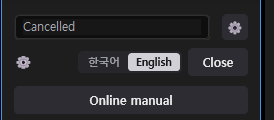
- 한국어 | English — language of the panel text (buttons · dialogs · settings)
- Online manual — opens this manual in your browser
- About — version · usage status · PC code
- Serial key — register · deactivate on this PC (when moving to another PC)
- Check for updates — if there is a new version, a bar appears at the top of the panel. Click it to open the update notes page
#FAQ
Q. Do I need VC Hub? No. VC Marker works on its own. The Hub makes installing, updating and managing serials easier.
Q. Does it work on Mac? It is built from the same code for Premiere on Mac, but testing on a real Mac is still in progress.
Q. Where did the frame save / copy / insert from older versions go? From 0.1.8 the panel keeps only the marker features. The frame features are no longer in this panel.